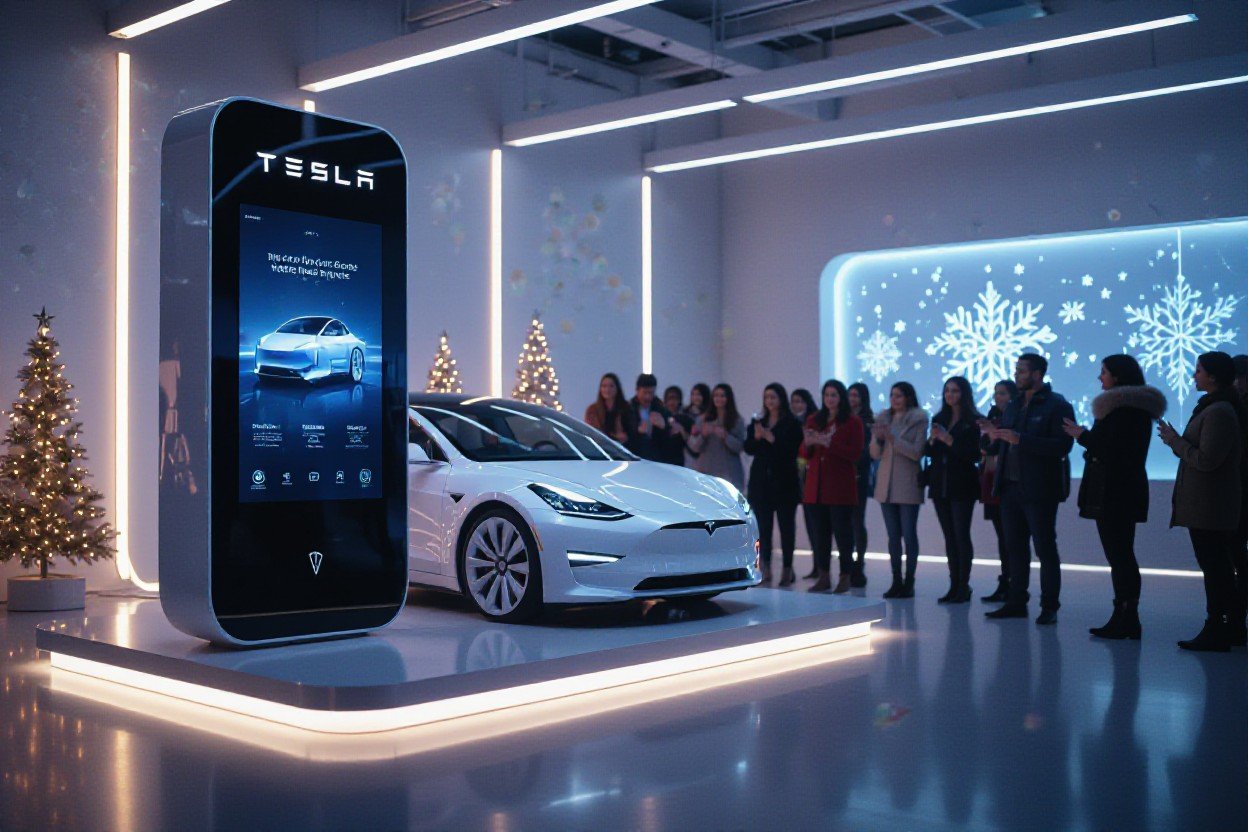
Most of what’s packed into Tesla’s 2025 Holiday Update is stuff you’ll actually feel every time you drive – from smarter Grok-powered navigation that lets you talk your way through trip planning, to tighter safety tools like richer dashcam overlays for incident review. You’re also getting fun perks like Photobooth, refreshed Santa Mode, and a wild SpaceX ISS docking simulator, so your car feels more like a rolling tech toybox. And yeah, no CarPlay yet, but this update still shifts how you use your Tesla day to day.
Grok with Navigation Commands (Beta)
What’s New in Navigation?
A lot of people assume this is just voice commands 2.0, but what Grok is doing with navigation is quite a bit smarter than the typical “navigate to Starbucks” stuff you already have. You can now say something like, “Plan a route to LA with a lunch stop in Bakersfield and a Supercharger near the outlet mall,” and Grok will actually add multiple stops in a single shot, ordered logically, instead of forcing you to poke around the screen. It understands context, so if you say “swap the second stop for a faster Supercharger,” it modifies the existing route rather than starting over.
On top of that, when you set Grok’s personality to Assistant, it behaves like a real co-pilot: “Skip this stop,” “Add a coffee stop after this charger,” “Route me around traffic even if it’s 10 minutes longer” – it handles those as follow-up commands based on your current trip, not as isolated requests. Right now, it’s limited to AMD-equipped cars in the U.S. and Canada, which is going to annoy Intel owners a bit, but it also hints that Tesla is leaning harder on on-device processing to keep these queries fast and reasonably private.
How This Makes Driving Easier
Navigation used to feel like something you set once and kind of put up with, but Grok is turning it into something you actively talk to while you drive. You can be in traffic, hands on the wheel, and just say, “Add a bathroom stop with food within 15 minutes from here,” and Grok will search, pick options, and insert a stop without you digging through categories and zooming the map. If you’re road-tripping, that alone can save you a bunch of fiddly screen taps every few hours.
What really changes the game is how it lets you fix plans on the fly. Say you’re on a trip with three planned stops and you hit unexpected traffic – you can just tell Grok, “Reorder the stops for the fastest arrival but keep my last destination the same,” and it reshuffles. No starting a new route, no re-adding everything manually. For daily use, this means stuff like “Route me past a grocery store on the way home” becomes trivial, instead of you fighting with the map to avoid overshooting your turn.
Because this all sits on top of Tesla’s existing routing engine, you’re not learning a new system, you’re just skipping the annoying bits. You’re still using energy-aware routing, Supercharger planning, HOV routing, all the usual Tesla tricks – Grok just acts like a smart front-end that translates what you say into those complex settings in the background. In practice, it feels like you get the benefits of a power user without ever exploring into menus.
My Thoughts on This Feature
Most people think voice navigation is a nice-to-have gimmick, but in Teslas, it’s starting to feel like the real UI for anyone who actually drives a lot. The fact that you can chain commands – “add a stop,” then “move that stop to the end,” then “find a faster charger instead” – makes it feel more like a conversation than a one-off button press. It’s closer to having a passenger with Google Maps open than talking to a dumb assistant that forgets everything after each command.
I do think the hardware restriction is going to be a sticking point for a while. If you’re in an Intel-based Model 3 or S, watching AMD cars get Grok upgrades like this might sting, especially when this is positioned as the headline feature of the 2025 Holiday Update. That said, the fact Tesla is comfortable shipping navigation-level control to an AI assistant in beta, not just trivia or jokes, shows how confident they are in the stack – and how central Grok is becoming to the in-car experience.
In daily life, I see this landing best for people who road-trip or have kids in the car constantly, because that’s when you’re juggling stops, timing, and energy loads all at once. If Tesla can keep refining the natural language side – fewer misunderstandings, better location matching, smarter handling of local place names – this could end up being one of those features you don’t really appreciate until you hop into a non-Tesla and suddenly feel like you’ve gone back five years in time.
Tesla Photobooth – Seriously, A Photobooth?
A Fun Way to Capture Memories
Yes, Tesla literally turned your cabin camera into a photobooth, and it’s way more fun than it sounds on paper. You can fire it up at a Supercharger, snap a quick selfie with your passengers, then stack on filters, stickers, and goofy overlays until it looks like something straight out of an old mall booth. It feels like Tesla finally embracing the fact that you’re already treating the car like a social hub, not just a way to get from A to B.
What makes it surprisingly sticky is how shareable it is: you can push shots straight to your Tesla app and then off to your group chats in a couple of taps. So that 480-mile road trip you did last summer? Now you can document it with a mini timeline of in-car photos – first coffee stop, kids passed out in the back, midnight charge session – all captured with the same camera that usually just watches for driver attention.
How to Use the New Feature
Getting into Photobooth is dead simple: you just hop into Toybox, tap the new Photobooth tile, and the cabin camera pops live on your center screen. From there you can pick between different layouts, hit the shutter, then swipe through filters, stickers, and effects like you would in a social app. The magic is that it all runs locally in the car, so you’re not waiting on a slow data connection just to add a silly sticker.
Once you’re happy with the shot, you save it to your profile and optionally sync it through the Tesla app, where it shows up in a dedicated Photobooth section. Because everything is tied to your driver profile, your own history of shots sticks with you even if someone else drives the car later. That makes it feel more like your rolling camera roll than a shared device everyone’s dumping into.
On top of that, you can quickly undo edits, duplicate a favorite layout, and even run a rapid-fire burst session if you want those classic four-frame photostrip vibes. It’s very much built for low-friction use: open, snap, tweak, send – all while you’re waiting for the Supercharger to tick from 40% to 80%.
Why This is Perfect for Road Trips
Road trips are where this thing quietly shines, because you now have a built-in way to capture those weird in-between moments that never make it to your phone camera. You can mark each major stop with a quick Photobooth shot, then later scroll through and instantly see how the vibe changed from the 7 a.m. departure to the late-night charge stop in another state. It basically turns your Tesla into a rolling travel diary without you needing to think too hard about it.
And when you’re traveling with kids, friends, or pets, it becomes an easy ritual: plug in, open Photobooth, grab a “charging selfie,” then head inside for snacks. By the end of a 3-day trip, you’ve accidentally built a visual log of the entire journey that’s already synced back to your phone, no SD cards or manual transfers. For a lot of owners, those clips and photos will probably end up being more valuable than half the games in Arcade.
Because it’s all tied to Toybox, you can also pair Photobooth with other features like Light Show at holiday meetups or Tesla owners events, using your car as both the entertainment and the camera station. It’s peak Tesla: a little extra, slightly ridiculous, but exactly the kind of thing you’ll pull out the second your passengers find out it exists.
Dog Mode Live Activity – Keeping Fido Happy
What’s This All About?
With iOS 16 and later, Live Activities have quietly become the go-to way for you to keep tabs on stuff without bouncing between apps, so it was only a matter of time before Tesla plugged Dog Mode into that. Instead of you nervously opening the Tesla app every few minutes, your iPhone can now surface a persistent Live Activity on the Lock Screen that shows what’s going on in the cabin while your dog is chilling inside. You get live temperature, state-of-charge, and basic climate status in one glance so you can walk away from the car without that pit-in-your-stomach feeling.
What makes this interesting is that Tesla didn’t just slap a static card on your screen and call it a day. The Live Activity includes periodic cabin snapshots from the interior camera, which means you can literally see your dog sprawled across the back seat or pacing near the center console. That extra visual feedback is a big deal if you’re leaving your pet for longer than a quick coffee grab, and it starts to move Dog Mode from a cute party trick into a more serious, data-backed safety feature.
How It Works and Why Dogs Will Love It
Once you park, enable Dog Mode like you normally do on the in-car screen, then lock the car and walk away – the new part kicks in on your phone. If you’re using a compatible iPhone, your Tesla app fires up a Live Activity that pins itself to the Lock Screen, and on iPhone 14 Pro and newer it also sits in the Dynamic Island. You’ll see cabin temperature (for example, 70°F), outside weather context, your battery level, and a Dog Mode status line so you know climate control is actually active and not just assumed.
Every so often, your car will capture a cabin camera thumbnail and update that inside the Live Activity, so you can glance down and confirm your dog is still sprawled out and relaxed instead of whining at the door. Because the update also shows your real-time state of charge, you can tell if that 40% battery you left the car with is dropping faster than expected, which is especially important in very hot or cold conditions. Your dog doesn’t care about software features, but they absolutely care that the cabin is staying at that safe 68-72°F zone while you’re stuck in a slow restaurant line.
In practice, you might use it like this: you park at an outdoor mall in August, set Dog Mode to 70°F, see that your battery is at 55%, then walk off. Ten minutes later, your Lock Screen still shows 70°F and 53% battery, along with a fresh snapshot of your dog sleeping on the rear seat – so you keep browsing. If you check again in 30 minutes and the card shows 71°F but your battery is dipping toward the 25% mark faster than you like, you know it’s time to wrap up and get back to the car instead of guessing. That kind of tight feedback loop is exactly what turns Dog Mode into something you actually trust in sketchy weather.
My Take on Pet Safety in Tesla
Pet safety in cars has become a huge topic over the last few summers, with multiple U.S. states reporting dozens of heat-related pet deaths in vehicles every year, and that’s just the stuff that makes it into official stats. You already know cracking a window doesn’t cut it – studies show cabin temps can spike 20°F in just 10 minutes on a 70°F day, and it gets worse if you’re parked on dark asphalt. Dog Mode solved a big chunk of that risk by keeping climate running and plastering a big message on the screen for passersby, but until now you still had to trust that everything was working once you walked away.
What this Live Activity layer does is tighten the loop between you, the car, and the environment so you’re not flying blind. You can check the feed every few minutes if you’re anxious, or just glance occasionally during a long dinner and see that temp and battery are staying stable. It’s not magic, and you still need to use common sense with extreme weather and longer stops, but the combo of Dog Mode + live telemetry + camera feedback is a lot more robust than leaving your pet in a traditional ICE car with the windows cracked and hoping for the best.
From a broader safety perspective, you’re imperatively getting a lightweight remote monitoring system for your pet, built right into the platform you already use for charging and navigation. That means if Tesla ever layers in extra smarts – say, proactive warnings when cabin temp drifts past your set point, or alerts if the car detects unusual movement or distress – the foundation is already there. You end up with a setup where you’re not just trusting that your dog is comfortable, you’re verifying it in near real time, and that subtle shift in control can make a big difference in how confidently you use Dog Mode day-to-day.
Dashcam Viewer Update – Have You Heard?
The Cool New Features
Over the last year you’ve probably seen more clips from Tesla dashcams popping up on Reddit, X, and YouTube, and this update basically turns your car into its own little black box lab. When you open the Dashcam Viewer now, each clip can show overlays for speed, steering angle, accelerator position, brake pressure, and Autopilot/FSD status right on top of the footage. So instead of arguing about whether you were on the brakes or if Autopilot was in control, you literally get a timeline that spells out what the car was doing and what you were doing, frame by frame.
What makes this extra useful is how it plays with incidents that happen fast – a lane change that goes wrong in half a second, a rear-end tap in traffic, some sketchy road rage thing in a parking lot. You can scrub through the clip and see the steering wheel trace changing, see the exact moment the brake pressure spikes, and check if the FSD icon flips from active to disengaged. For anyone who likes data, this turns Dashcam from just “video proof” into a pretty serious driving telemetry tool baked directly into your car.
Why This Matters for Tesla Owners
In a world where one fender bender can turn into a long back-and-forth with insurance, you now have way more than just “here’s a video.” With this update, you can show that you were going 47 mph in a 50 zone, already on the brakes 0.8 seconds before impact, and not using Autopilot at the time. That kind of granularity is what can swing an adjuster decision or shut down a nonsense claim that you “suddenly accelerated” into someone. And if you’re in a region where regulators or researchers are watching ADAS behavior, having Autopilot/FSD state burned into the overlay is a huge step toward transparency.
Beyond accidents, this helps you understand your own driving in a way that wasn’t really possible before without third party tools. You can pull up a clip from that sketchy off-ramp where FSD wiggles the wheel a bit and literally see how aggressively it was steering, how much throttle it was carrying, and at what point it started easing off. For a lot of owners testing FSD Beta in particular, that means you can review edge cases like a driving coach reviewing game tape instead of just going off gut feeling.
On top of that, if you’re someone who likes to file detailed bug reports or post analysis online, this turns your car into a pretty legit data source. You can pause on the exact frame where FSD hesitates at an unprotected left, screenshot the overlay, and share a clear record of “speed, angle, input, and system state” with other owners or even with Tesla support if you’re chasing a specific behavior. It makes your feedback less “it felt weird here” and more “here’s what the system actually did in numbers,” which is a big deal if you’re trying to push the software to improve.
My Personal Experience with Dashcam
When you start digging into Dashcam clips with this update, you quickly realize how many times it quietly saved your butt without you thinking about it. The first time I pulled a clip with the new overlays after someone cut across two lanes in front of me, it was weirdly satisfying to see the steering angle spike and brake pressure jump exactly where my brain remembered it happening. You get this instant confirmation that yeah, your reaction was there, and the data backs it up.
A couple of friends who drive a ton for work told me the same thing: the old Dashcam felt like a security camera, the new one feels closer to a flight recorder. You can go back through a near miss on an icy morning, see how fast you were actually entering a curve, and whether you feathered the pedal or slammed it. That kind of detail nudges you into driving differently next time, not because the car nags you, but because the replay doesn’t lie and it’s all right there on your screen.
What really stands out after using it for a bit is how often the extra context would have helped in those “he said / she said” moments that every driver gets sooner or later. Even something as simple as showing that FSD was completely disengaged when you pulled into a parking lot, or that brake pressure was already building before someone hit you from the side, can flip the whole conversation with an officer or insurance rep. Once you’ve got used to seeing that little layer of telemetry over your clips, regular dashcam footage from other cars kind of feels half-finished.
Santa Mode – Is It Really That Magical?
What’s Included in Santa Mode?
Straight up, Santa Mode is the one feature in this update that can completely change how your car feels without touching a single performance stat. You hit Toybox, tap Santa Mode, and suddenly your 3D visualization swaps in holiday glam: your car shows up as Santa’s sleigh, pedestrians turn into little elves, and this year you’re getting new snowmen, trees, and heavier snow effects swirling around the screen. On newer AMD-powered cars, the flakes and lighting look surprisingly smooth at 60 fps, while Intel cars get a slightly simplified version so the UI doesn’t lag when you’re actually driving.
Audio gets a glow-up too. Your lock chime can switch to a holiday-themed jingle, and you can pair it with the new Light Show options for a full-blown driveway spectacle. If you’re already using the Toybox Light Show or Jingle Rush, flipping on Santa Mode basically lets you set up a mini synchronized performance: you, a handful of parked Teslas, sleigh on the screen, snow everywhere, and that festive chime firing every time you hop in or out.
The Fun Factor for Kids (and Adults)
Kids lose their minds over this stuff, and Tesla clearly knows it. When your 6-year-old sees the car turn into a sleigh, complete with elves walking around the visualizer and snow effects that respond as you drive, it suddenly becomes a game to sit up front and point out every new animation. Pair it with the SpaceX ISS Docking Simulator or Photobooth afterward and you’ve basically built a rolling holiday entertainment center that keeps them busy in traffic or in a Supercharger queue.
Adults get pulled in too, even if you pretend you’re above it. You start aiming your departure times for dusk because the ambient lighting, the Light Show, and Santa Mode visuals all hit harder when it’s dark and the cabin’s glowing. And once you sync your car with a friend’s Tesla and run a coordinated Jingle Rush while the dashboards are in Santa Mode, it stops being a gimmick and starts feeling like a legitimately fun tradition you repeat every December.
What’s interesting is how quickly it becomes part of your routine: you take a quick Photobooth selfie with the kids in front seats, turn on Santa Mode for the drive to grandma’s, let them call out every snowman and tree on the screen, then park and kick off a Light Show in the driveway while your neighbors peek out the window. That combination of visuals, sound, and interaction is why this feature sticks – it’s not just cute UI, it’s something your family actually asks you to turn on again.
Why You’ve Got to Try It
Even if you’re usually in the “no gimmicks, just range and safety” camp, Santa Mode is worth flipping on at least once because it quietly layers over features you already care about. Navigation visuals, Autopilot status, and sensor feedback are still there; they’re just wrapped in that holiday sleigh-and-snow layer without hiding the important bits. You still see lane markings, vehicles, and alerts, so you’re not trading clarity for cuteness, you’re just giving your normal UI a seasonal skin.
There’s also a social angle that doesn’t show up in release notes. You pull into one of those 18 updated Supercharger sites with the new 3D maps, tap Santa Mode, and suddenly your stall selection, charging status, and surrounding cars all exist in this little winter scene on-screen. Do that while someone in the next stall runs a Light Show, and you’ve instantly got a shared conversation starter that makes a 20-minute top-up feel like an event instead of a chore.
In practice, you’ve got to try it because it stitches together half the update into one vibe: Grok handles your voice navigation, the Supercharger map guides you in, the Tron-style lock sound or holiday chime hits when you get out, then Santa Mode covers everything in snow while the kids watch from the back seat – it’s the rare software feature that doesn’t add a single new button to learn, yet makes the car feel totally different for a couple of weeks a year.
Light Show Update – Let’s Party!
What’s New in the Light Show Feature?
Compared to previous years where you just tapped, watched, and that was it, this time you actually get to direct the whole spectacle. The new Jingle Rush show can be scheduled up to 10 minutes in advance, which means you can time your Tesla to fire up exactly when your guests walk outside or when the countdown hits zero. You also get tighter syncing across multiple cars, so if you and your neighbors line up 3 or 4 Teslas, you can pull off a proper neighborhood mini-fleet show instead of a slightly awkward, off-beat mess.
What really changes the vibe is the extra control over interior lighting and show length. You can tweak the cabin lights to match the exterior pattern, extend the runtime so the show doesn’t abruptly cut off when everyone just got their phones out, and make the car feel like a rolling stage kit. In other words, this stops feeling like a throwaway Toybox gag and becomes something you can actually plan around for parties, events, or that one time you want to absolutely flex on your HOA. For more detail on how this fits into the full release, you can check the breakdown in Tesla 2025 Holiday Update: Here’s what it includes, and ….
How to Set Up the Perfect Show
Instead of just parking and hitting Start, you’ll get the best results if you treat it like a tiny stage production. Start by finding a level surface with a clear front view and at least 15-20 feet of space so people can see the entire car without constantly backing up into a snowbank or curb. Then, if you’ve got more than one Tesla in the mix, line them up with consistent spacing (2-3 car widths is usually ideal) and sync Jingle Rush so every vehicle kicks off together – that timing is what makes it feel like a coordinated show rather than a bunch of random flashing lights.
Lighting makes or breaks it. Killing nearby floodlights or garage lights helps the exterior LEDs punch harder, while dialing in the new interior lighting customization turns the cabin into a glowing centerpiece, almost like a moving light bar. And if you’re planning to post it later, frame your phone shot wide enough to capture the entire car profile plus reflections on the ground – those reflections make the sequence look way more premium in video than you’d expect from a stock feature.
One detail a lot of people skip is sound planning. If you’re hosting a group, running the audio on a portable Bluetooth speaker in front of the cars instead of relying purely on the car’s speakers helps everyone hear the music clearly without people huddling right up against the bumper. That separation between sound source and vehicles also makes the videos you capture feel bigger, because it stops the audio from sounding like it’s trapped inside a single car.
Are Tesla Owners Actually Willing to Show Off?
Compared with low-key software tweaks like charge limits or map pins, this is the kind of feature that lives or dies on whether you’re comfortable turning your driveway into a mini light festival. And judging by the last few years of viral clips and parking lot meetups, you probably are – early owners turned the original light show into everything from Christmas street performances to New Year’s countdown traditions within a couple of weeks. Tesla clearly knows that, which is why this update leans hard into multi-car sync and timing control, basically handing you tools to scale up from “fun party trick” to “block-level spectacle” if you’ve got a few friends with Teslas nearby.
What’s interesting is how quickly it turns strangers into collaborators. You park at a Supercharger, someone else with a Model 3 rolls up, and suddenly you’re syncing Jingle Rush to run on both cars while people film from the side – it happens because the friction is so low now: tap, schedule, sync, done. That’s the real magic here: the tech is flashy, but the social part is what makes people keep doing it every holiday season, and this update quietly doubles down on that behavior instead of just tossing in another canned animation.
If you’re more introverted, you don’t have to stage a street-wide event to enjoy it, either. A single, perfectly timed show for your kids in the driveway, or a quick sync with one other car at a family gathering, still hits that same “wow” factor, just at a smaller scale that fits your comfort level while still letting you lean into the whole show-off aspect when you actually feel like it.
Custom Wraps and License Plates – Time to Get Creative
Expressing Yourself with Customization
Picture this: you hop into the car, tap Toybox, open Paint Shop, and your on-screen Model 3/Y/S/X is suddenly sitting there in a matte purple wrap with bronze wheels and dark tint. That little avatar now actually looks like your real car in the driveway, not the generic white default you’ve been staring at for years. You start flipping between presets – chrome delete, blackout trim, even subtle smoke on the headlights – and you can instantly see how wild or how restrained you want to go before you even think about booking an actual wrap shop.
What makes this fun is that you’re not locked into Tesla’s presets. Paint Shop now lets you layer wrap color, window tint level, and a custom plate on the same car model, so you can test ridiculous combos without spending a dollar. Want a satin teal exterior, 35% tint, and a plate that says “NO-GAS”? Do it. Prefer a sleeper spec, light tint, and a boring state plate with a tiny easter-egg frame? Also doable. It turns the car icon into a kind of rolling profile picture that actually feels like yours.
How to Request and What to Expect
Inside the car, you just jump into Toybox → Paint Shop and pick the Custom tab. That’s where you can pick from built-in wraps (Tesla seeded a bunch of favorites like stealth gray, bright red, and a few two-tone experiments), then tweak tint opacity in roughly 5% steps, from barely-there all the way to limo-dark. For plates, you can choose regional formats, Tesla-styled novelty plates, or your own design pulled from USB. The whole thing updates your on-screen car in real time, including in the main visualizer while you’re driving.
Once you’ve built something you like, you can save multiple profiles tied to your driver profile – so your partner can rock a clean OEM+ look while you keep a louder track build. The car uses your latest saved style for the visualizer, mobile app, and Toybox, so that custom wrap and plate follow you across the UI. Nothing here changes how your real-world DMV plate works, obviously, but visually your Tesla starts to feel like a character in its own little game universe, not just a placeholder icon.
One subtle detail that’s easy to miss: when you upload your own plate or wrap assets from USB, Tesla recommends relatively small image sizes (think under 5 MB) and a standard 16:9-ish aspect ratio so the render stays sharp without lagging the UI. If you push it with giant PNGs, the car will still load them, but you might notice a brief flicker the first time the model spins. Once it’s cached though, everything is smooth, and your custom look carries into things like the Jingle Rush light show preview and even some Arcade titles that show your car.
My Favorite Custom Ideas
One combo that instantly works is a winter ski-trip theme: white satin wrap, mid-level blue-ish tint, and a novelty plate that says “ELEV-TRN” or some nerdy energy pun. Pair that with Santa Mode visuals and your whole UI looks like it’s in holiday cosplay. On the other end of the spectrum, a lot of people are gravitating toward a full stealth build – dark gray wrap, nearly black trim, subtle tint, and a minimal black plate frame with tiny text. It makes the in-car visualizer feel like a concept car render from a design studio deck.
If you want to lean into the tech side, try matching your wrap to your phone or laptop. A clean silver exterior with light tint and a plate like “CMD+S” or “0-100” looks oddly perfect on the 3 and Y. And because the update supports per-driver styling profiles, you can create a “track day” look with bright wrap and loud plate for when you’re playing with Track Mode, then switch back to a low-key commuter vibe with a couple taps. It sounds silly, but it genuinely makes the car feel more personal every time you hop in.
For something more playful, EV owners with kids have been having fun with theme builds: SpaceX-style black wrap and “DRGN-ISS” plate to match the SpaceX ISS Docking Simulator, or a Tron-inspired neon plate paired with the new Light Cycle lock sound. If you’re into content creation, you can even design a plate that matches your YouTube or TikTok branding, then use Tesla Photobooth to grab in-car shots featuring that exact combo, which quietly turns your car into part of your channel identity.
Navigation Improvements – Seriously, More Updates?
What Changes Have Been Made?
Instead of just shuffling icons around like a typical yearly refresh, Tesla actually went in and touched the parts of navigation you poke at every single day. You can now drag and reorder your Favorites, so the stuff you tap constantly – home, work, your go-to Supercharger, that one burrito spot you always end up at – finally sits at the top instead of buried in the chaos. On top of that, setting Home or Work is no longer stuck to your physical address; you can drop a pin anywhere on the map and tell the car “this is home now,” which is huge if you live in a new build or somewhere maps are a bit wonky.
Beyond the basics, the car itself is getting a bit nosy in a good way. Navigation now surfaces suggested destinations based on your recent habits, so if you hit the same gym at 7 a.m. three days in a row, you’ll probably see it pop up automatically the next morning. It feels closer to how your phone guesses where you’re going, but now it’s baked straight into the in-car UI, no extra apps, no fiddling.
How They’re Making Life Easier
Compared to the old setup where you had to dig through lists or type addresses like it was 2012, this feels way more like a modern, learning system that actually pays attention to you. Being able to pin any location as Home or Work means your commute shortcuts, departure timing, and charging prompts all get smarter in one shot, especially if your real-world entrance is around the block from where Google or Tesla maps think it is. You’re basically teaching the car your version of the map, not the other way around.
On a random Tuesday, those suggested destinations quietly save you time you didn’t even realize you were wasting. Instead of typing “school” or scrolling through recents, you just tap the card that appears, swipe, and go; over a month of driving that could be dozens of interactions you simply skip. And because favorites are now reorderable, the stuff you actually use ends up in the first row, which sounds tiny but matters when you’re doing this hundreds of times a year.
What really shifts your day-to-day is how all these tweaks stack: pin-based Home/Work fixes bad addressing, habit-based suggestions kill a ton of repetitive typing, and ordered Favorites mean your muscle memory finally lines up with the UI instead of fighting it, so the entire flow from “get in the car” to “route started” shrinks down to a couple of taps at most.
Why This is a Game Changer for Road Trips
City driving is where you feel the polish, but road trips are where this stuff actually pays off in hours, not seconds. When your Favorites list is curated and reordered, you can stack up your usual charging stops and food spots in seconds instead of hunting for each one manually before a long drive. Combine that with the car learning your habits, and suddenly the places you hit on every Denver-to-Vegas run are one tap away instead of a mini planning session every single time.
It also makes those mid-trip adjustments way less annoying. Decide you want to add a different Supercharger or detour to a certain restaurant you always hit outside a specific city? You just drag a saved Favorite into the queue or tap a suggested destination that pops up near your current route. That reduces the “park, fiddle with the screen, re-route” dance and keeps you moving, which is kind of the whole point when you’re chewing through 500 miles in a day.
Where this really changes the game is when you mix these nav improvements with everything else in the update – Grok handling multi-stop routing, smarter Favorites, and context-aware suggestions mean that on a long trip you’re spending less time planning stops and more time just driving, with your Tesla quietly handling a lot of the boring logistics you used to juggle yourself.
Supercharger Site Map – Planning Made Easy
What’s New in the Site Map?
You finally get a proper visual of where you’re actually going to plug in. At a growing list of locations – 18 Supercharger sites at launch – a detailed 3D site map now pops up the moment you arrive. You see the layout of the lot, the exact positioning of each stall, traffic flow, and where the amenities are, instead of hoping you guessed right from a tiny pin on a flat map.
On top of that, each stall shows real-time status labels like Available / Occupied / Down, so you’re not circling a crowded plaza trying to work out which cable someone just unplugged. You can roll in, glance at the screen, and head straight to an open, working stall that actually fits your car and trailer situation if you’ve got one in tow.
How This Improves Charging Experience
What this really changes for you is that awkward last 2 minutes of every charging stop. Instead of creeping through a random parking lot, second-guessing the arrows on the pavement, you can spot the right entrance, see which aisle the stalls are in, and avoid the tight dead-end corners that are brutal with a bike rack or cargo box. For busier hubs with 20, 30, even 40 stalls, that visual context removes a ton of friction.
You also cut down wasted time from broken or blocked stalls. With the “Down” status shown before you even put the car in Park, you can just skip over those spots and go directly to ones that are actually usable. That might only save you 3 or 4 minutes per stop, but if you do a 1,000 mile trip and hit 5 or 6 Superchargers in a day, that adds up to a meaningful chunk of time you’re not sweating in a busy lot.
Because the info appears automatically on arrival, you don’t have to dig through menus or zoom around the map while you’re trying to watch pedestrians and shopping carts. You pull in, the layout appears, you pick a stall visually, and you glide right to it. It sounds like a small UI touch, but in practice it makes those high-traffic travel plazas feel more organized and less stressful, especially if you’re rolling in late at night or in bad weather and just want to plug in without drama.
My Thoughts on Road Trip Planning
From a planning angle, this is the kind of groundwork feature you really feel once you stack it with everything else in the update. You’ve already got Grok helping you add multiple stops, plus smarter suggested destinations, and now when you actually arrive, the car gives you a mini blueprint of the site instead of just dropping you at a vague entrance. That combo turns what used to be “let’s hope this lot isn’t a mess” into a predictable, repeatable routine.
It also quietly helps if you road-trip with family or less EV-savvy friends. You can say, “Hey, we’re pulling into a big 24 stall site, bathrooms are over on that side, we’ll park here,” and everyone knows the plan before you’ve even put the selector into Reverse. After a few trips, you’ll start remembering which sites have easier pull-through spots, which ones you want to avoid at rush hour, and you’ll use that to tweak your routes in a way that just wasn’t practical when every Supercharger looked identical on the map.
As Tesla scales this beyond the initial 18 sites, you’ll probably start prioritizing mapped locations over older ones when you’re given route options, especially on those longer drives where every stop either keeps your momentum or kills it. Over time, that means you’re not just trusting the system to find chargers along the way, you’re actually picking the best-flowing sites for your style of driving, which is exactly how EV road-tripping starts to feel less like an experiment and more like a refined routine you’re fully in control of.
Automatic HOV Lanes Routing – Who Doesn’t Love Saving Time?
How This Feature Works
You know that feeling when you crawl along at 15 mph while the HOV lane is just flying past you and you’re low-key regretting every life choice that led to that moment? With the 2025 Holiday Update, your Tesla is basically trying to stop that from happening by automatically routing you into HOV lanes when you actually qualify to use them. The car looks at passenger count, the current time window, and local HOV rules, then quietly prefers those faster lanes in your route if you’re allowed to be there. If you’re solo and not eligible, it simply won’t try to cheat the rules for you.
Under the hood, it behaves a lot like the existing traffic-aware routing: the system pulls live traffic data, overlays that with HOV restrictions, then recalculates ETA assuming you take the HOV segment instead of general-purpose lanes. In cities like LA, Seattle, or Toronto where HOV lanes can cut travel time by 20-40% during peak, that’s not just a minor tweak, that’s the difference between making your meeting or walking in after everyone’s already finished coffee. And because the update ships alongside the smarter nav features highlighted in Tesla’s 2025 Holiday Update Brings AI Nav, Supercharger …, you’re getting a pretty stacked combo of automation helping you get around.
Why It’s a Big Deal for Commuters
On a typical weekday commute, you’re probably repeating the same 20-40 mile route, hoping traffic isn’t worse than yesterday. With Automatic HOV Lanes Routing, the car can turn that grind into something a bit more predictable by consistently spotting where an HOV-only segment cuts 5, 10, even 15 minutes off the drive. Tesla’s traffic models already prioritize the fastest path; now they’re just adding another layer of logic on top that understands “hey, you’ve got enough people in the car, let’s jump into the HOV lane for the next 8 miles.” Over a year, saving even 8 minutes a day is roughly 30 hours of your life back.
What really matters here is how it adapts across different regions. In some places HOV rules end at 7 pm, in others it’s 6 pm, some require 2 occupants, some 3, some convert to general lanes on weekends. The update ties your routing to those local time windows so you’re not guessing if you’re allowed to be there or relying on half-faded road signs. You just see the recommended path, and if the car wants you in HOV and you qualify, you tap go. If not, it sticks with the standard lanes and keeps your ETA realistic instead of fantasy-land optimistic.
There’s also a subtle mental benefit you’ll feel after a week or two: you stop obsessively second-guessing which lane to commit to. Instead of you trying to remember every quirk of the route, you lean on the car’s awareness of rules, time-of-day, and traffic. For daily commuters, that cognitive offload is huge. Less guesswork, fewer “did I just break a rule?” moments, and more consistency in when you actually show up. In a weird way, it nudges your Tesla a step closer to being a true commute partner rather than just a fancy GPS.
My Take on Navigating Traffic
In real-world terms, this feels like Tesla finally acknowledging how ugly rush hour can be if you’re juggling podcasts, Slack pings, and trying to parse tiny HOV signs at 65 mph. You’ve probably had those moments where the nav shows two similar routes with a 3 minute difference and you’re not sure if that’s just noise or a legit shortcut – with automatic HOV routing, a lot of that fuzziness disappears. If the car knows an HOV lane will move, it leans in, and if it doesn’t, it won’t shove you into a lane that’s actually slower just because it looks fancy on the map.
What I really like is how this pairs with multi-stop trips and the smarter “habit-based” suggestions Tesla already added in this update. Say you routinely pick up your kids, hit the gym, then head home across a corridor with mixed HOV and toll segments: over time, you’ll see the car consistently thread you through the HOV parts that match your passenger count while skipping the ones that would be either illegal or pointless. It’s not magic, but it feels like the car is finally driving the way an experienced local would route you, not like a generic GPS app guessing from data alone.
From a trust perspective, this kind of feature is the bridge between “nice tech demo” and “you actually rely on this every day.” You’re still in charge, you still see the route and can ignore it, but when your car starts consistently calling the right lane choice on your worst traffic corridors, you stop babysitting the nav and just let it work. And that’s when the whole Tesla experience starts to feel less like a gadget and more like an assistant that actually understands how ugly traffic can get in your specific city.
Phone Left Behind Chime – Have You Forgotten Your Phone?
What It Does and How It Helps
Ever had that mini heart attack 5 minutes after you’ve parked, wondering if your phone is still sitting in the car? With the new Phone Left Behind Chime, your Tesla now quietly becomes your backup brain. If your UWB-enabled phone key is detected in the cabin or sitting on the wireless charger while you start to exit, the car triggers a distinct chime and on-screen alert that basically says: hey, your digital life is still in here.
In practice, it works a lot like AirPods “left behind” alerts, but tuned for the way you actually use your car. You step out, close the door, the car notices your primary phone key isn’t moving with you, and before you even lock the vehicle you get that subtle nudge. Because it relies on ultra-wideband proximity, it can tell the difference between your phone being in your pocket vs still lying flat on the pad, so you aren’t bombarded with false alarms every time you lean over the console.
Why It’s a Small but Important Feature
On paper this sounds like a tiny tweak, but think about how much you rely on your phone for Tesla ownership alone: app access, Phone Key, service scheduling, Supercharger routing, two-factor codes for your accounts, the list goes on. If you leave it behind at a Supercharger 200 miles from home, that “tiny” mistake can spiral into towing calls, account lockouts, and a very long night. This is why Tesla tying the alert directly to the phone key and wireless charger is such a smart move – it targets the exact scenario where you’re most likely to forget it.
From a security angle, it also helps you avoid leaving a fully unlocked, authenticated device sitting in plain sight. Your phone often has your car key, banking apps, email, and password manager in one place, so you’re not just leaving a gadget, you’re leaving a full identity kit. That short chime as you step out can literally be the difference between “oh, thanks” and hours canceling cards and resetting logins later.
It also fits into a broader pattern you’re seeing with this Holiday Update: Tesla quietly wiring more of the car’s behavior around how you actually live, not just how the spec sheet looks. Navigation gets smarter with Grok, Dog Mode talks to your iPhone, Superchargers show 3D layouts, and now your car is actively watching for those high-friction, high-stress edge cases like abandoning your phone at a charger or mall. It’s one more example of software closing the gap between the car you bought and the assistant you kind of wish you had riding shotgun all the time.
My Personal Story of Almost Leaving My Phone
A quick real-world moment to ground this: picture a late-night Supercharger stop on a winter road trip, you’re juggling snacks, a bathroom break, maybe cranky kids in the back, and your phone is sitting on the wireless pad because you were checking the next leg of the route. You unplug, hop in, move the car to a parking spot, grab your stuff, and rush everyone into the rest stop. Perfect setup to leave your phone behind without even noticing. I’ve had that “where’s my phone” panic walking back to the car more times than I care to admit.
Now imagine the same scenario with this update active. You crack the door, slide out, the car senses your UWB phone still parked on the pad and hits you with that short, purposeful chime. Instantly your brain does a hard reset: you lean back in, scoop the phone, and carry on like nothing happened. It’s such a small intervention that you almost forget it happened, but it cuts off an entire chain of stress and potential account exposure before it even starts.
That near-miss vibe is why this feature lands harder than it looks in the release notes. You don’t notice it on a calm Tuesday commute when everything’s in order, you notice it on the chaotic days: airport runs, late-night charging, juggling kids, coffee, luggage, and notifications all at once. Those are exactly the moments when you’re most likely to walk away from your phone and least likely to catch it in time. The fact that Tesla is using the hardware it already has – cabin sensors, wireless charging detection, UWB – to quietly cover your back in those messy real-life situations is where the update really shines.
Charge Limit per Location – Is Charging Stressing You Out?
How This Feature Can Help You Manage Charging
Picture this: you plug in at home, want to baby your battery at 60 or 70 percent, then the next morning at a Supercharger you suddenly realize you forgot to bump the limit back up and now you’re stuck waiting longer than you needed to. That tiny oversight is exactly what Tesla is quietly killing with Charge Limit per Location. Your car can now treat home, work, and your favorite DC fast charger as completely different charging profiles, instead of one global setting that never quite fits every situation.
So at home, you might set a conservative 60-70% daily limit to maximize long-term battery health, while your road-trip Supercharger gets a more aggressive 90-100% limit for range when you actually need it. Same story at work: maybe you only top up to 50% during the day because you know you’ll charge fully before a weekend drive. It sounds like a tiny bit of automation, but once you have a handful of regular spots, it starts to feel like the car just “gets” your routine and quietly optimizes around it.
Setting It Up: What to Know
The flow is pretty straightforward: you park at a location, plug in, then drag your charge slider to whatever percentage you want to lock in for that specific spot. When you tap to save, Tesla associates that limit with the GPS location, so the next time you plug in there, your preferred limit loads automatically without you poking around in menus. You basically “teach” the car once, then forget about it.
In practice, you’ll want to define at least three anchors right away: home, work, and your most-used fast charger. Home might live in the 60-70% zone, work sits around 50-60% since you’re parked for 8 hours anyway, and a highway Supercharger gets 90% so you’re not staring at the screen when you just want to get back on the road. Because it’s all location-based, you avoid that annoying game of constantly cranking the slider up for a trip then forgetting to pull it back down after.
One small detail worth knowing: if you override the limit at a given spot, the car will treat that as your new “default” for that location going forward. So if you normally cap home at 70% but one night before a ski weekend you drag it up to 100% and save, that becomes the new profile for home until you dial it back down. It’s powerful, but it also means you’ll want to consciously reset those special-trip tweaks after you’re done so your daily routine doesn’t drift into always-charging-high territory.
Why It’s a Relief for Tesla Owners
What really takes the pressure off is that you’re no longer playing battery micromanager every single time you plug in. Instead of juggling “Is 80% too high for daily use?” vs “Will 70% be enough for tomorrow’s meetings?” you offload that mental math to a few smart presets that trigger automatically by location. Over a full year, that can mean hundreds of charges where you quietly stay within healthier daily ranges without obsessing over it.
And for road warriors or people splitting time between multiple homes, it’s even more of a sanity saver. You can have a conservative setup at your city apartment garage, a higher cap at the cabin where chargers are scarce, and a totally different profile for your favorite 250 kW V3 Supercharger on the main highway. That combination of convenience plus better battery habits is exactly the kind of low-drama quality-of-life stuff that makes a long-term EV feel easier to live with than a gas car.
There’s also a psychological win here that doesn’t show up in the release notes: charging stops feeling like a chore you have to “get right” every time. Once you trust that home is always dialed for longevity, your trip chargers are tuned for range, and work keeps you in the safe middle of the pack, you’re less likely to obsess over every percent of state-of-charge. You just plug in where you are, let the car handle what it’s good at, and spend your energy on where you’re actually going instead of how many kilowatt-hours you’ve got onboard.
SpaceX ISS Docking Simulator – For the Space Nerds
What to Expect from This Feature
People keep assuming this is just Flappy Bird with rockets, but once you load it up you realize it feels a lot closer to what real Dragon operators see on console. You get a proper attitude indicator, relative velocity readouts in meters per second, and a proximity display that actually forces you to think in 3D, not just “point at station, go forward”. The UI mimics the real SpaceX docking panel enough that you start picking up basic orbital terms without even trying, like closing rate and translation vs rotation.
As you approach the ISS, the game tightens the tolerances and you feel it immediately – if you come in hotter than about 0.2 m/s near final approach, you get flagged and kicked back, just like a real abort envelope. Controls are mapped to the steering wheel and scroll wheels, so you can yaw, pitch, and roll the capsule while also translating in X/Y/Z, and because it’s limited to AMD-equipped cars the frame rate stays smooth enough that tiny adjustments actually matter. It isn’t Kerbal-level hardcore, but it absolutely punishes you if you try to brute force your way to the docking port.
The Fun Factor: Is it Worth It?
Some folks will write this off as another Toybox distraction you try once and forget, but if you have even a tiny bit of space geek in you, it’s very easy to lose half an hour trying to nail a clean approach. You start out overcorrecting, spinning the capsule, laughing at how badly you’re drifting off-axis… then five attempts in, you’re feathering the inputs, watching the relative velocity numbers like a hawk, hunting for that perfect zero-zero alignment.
What really hooks you is how it turns dead time into a mini skill grind. Waiting at a Supercharger, you can challenge yourself to dock without triggering a single yellow warning, or see if you can go from 50 meters out to hard-dock in under 4 minutes without exceeding 0.3 m/s closure. It feels a bit like playing a flight sim in bite-sized chunks – you get that “one more run” itch, but the sessions are short enough to fit between errands.
If you’re playing with kids or friends, it gets even better. You can hand off the wheel, let everyone try the same approach profile, and suddenly your car turns into a tiny mission control arguing about who blew the alignment or came in too hot. It ends up being one of those features you show off when someone new climbs into your Tesla, right up there with the Light Show and Santa Mode, except here you can actually get better at it over time instead of just watching a loop.
Why It’s More Than Just a Gimmick
Plenty of car games boil down to mashing the accelerator, but here you’re training your brain to read data, anticipate motion, and make micro corrections – the same mental muscles you use when you’re paying attention to Autopilot behavior or reading FSD visualizations. You start to internalize how small inputs affect trajectory over a few seconds, and that awareness quietly bleeds into how you manage following distance, lane changes, and even regen braking in real traffic.
There’s also a subtle educational angle that feels very on-brand for a company sitting on both a rocket business and a car business. SpaceX actually released a web version of this ISS docking sim years ago, and this in-car version borrows that same interaction model, so your kids (or you, no judgment) are playing with an interface that isn’t just “inspired by NASA” but modeled after real operational screens. You get exposure to concepts like relative motion in orbit and safe approach corridors without needing a whiteboard or a physics degree.
On a bigger level, it reinforces the whole ecosystem story you’ve basically bought into if you’re driving a Tesla in the first place. You’re sitting in an EV, running a SpaceX-style flight UI, practicing ISS dockings while your car pulls electrons from a Supercharger that might be powered by a Tesla Megapack across the lot. It’s all a bit sci-fi, sure, but the net effect is that the car feels less like a gadget and more like a tiny node in a larger space-and-energy sandbox you’re actually part of.
Other Improvements – The Little Things Matter
A Rundown of Additional Cool Features
Over the last couple of major Tesla updates, there’s been a clear trend: the headliners grab the X posts, but it’s the tiny, almost throwaway tweaks that change how you actually live with the car. This time you get the ability to toggle your wireless phone charging pads on or off, which sounds boring until you realize how often your phone overheats on long drives or trickle-charges all night in the garage. If you routinely run wireless Car Key plus a MagSafe battery pack or thick case, just being able to kill the pad on demand is a legitimate quality-of-life win.
Another one you’ll feel daily is the improved Spotify browsing and queue management. You can explore playlists faster, re-order your queue, and finally avoid that weird “why did my playlist just reset” moment on road trips. Pair that with the cleaned-up search behavior and you’re basically getting a more app-like Spotify experience instead of the clunky in-car variant you’ve probably been tolerating for years.
Why Each Update Counts
In a world where most cars sit frozen in time from the day you drive them off the lot, Tesla keeps leaning into this idea that your car is a rolling software project that never really ships. Every tiny tweak – like new Lock Sound options including the Light Cycle chime from Tron – reinforces that your car’s personality is software-defined. You get to pick whether it sounds like a normal EV or something ripped straight out of a 1982 sci-fi movie when it locks in a parking lot.
Then you’ve got the fun-but-functional stuff like rainbow accent lighting during Rave Cave, which at first looks like pure meme fuel but actually shows you how far Tesla is willing to go to keep the interior feeling fresh without touching hardware. Even if you never use Rave Cave more than twice a year, your brain still registers that new modes keep appearing, that the car is evolving in the background while you sleep, and that your 2 or 3 year old Tesla doesn’t feel dated the way a 2 or 3 year old traditional car does.
What really matters here is compounding value: none of these updates would justify a new model year on their own, but stacked over 12, 24, 36 months, they make your original purchase look smarter in hindsight. You might’ve bought in for FSD or the range or the design, but it’s these weird little holiday updates – the lock sounds, the toggles, the playlists, the lighting – that quietly extend how long you’re happy keeping the car instead of shopping for something newer.
My Favorite Hidden Gems
One detail that’ll probably slide under the radar for most owners is how those wireless charging pad toggles also help with shared cars. If you and your partner or roommate constantly swap phones between Android and iPhone or wired and wireless habits, you can just kill the pads when they’re not needed so you’re not juggling what’s charging and what’s not every time you jump in. It feels tiny, but after a week you start wondering why every car with wireless charging doesn’t already do this.
I’m also into how Tesla keeps tying the “fun” features back into the core UX, like the rainbow accent lighting synced to Rave Cave instead of it being just a static color strip you set once and forget. When you’re parked at a Supercharger late at night, bored out of your mind, those little touches are exactly what stop the experience from feeling like you’re just sitting in a big battery waiting for numbers to tick up.
These are the kinds of things you only notice after living with the car for a while: the one-tap way your music queue behaves, the playful lock sound that tells you the car is secured without looking back, the way the interior light show gives your kids a reason to actually love Supercharger stops. None of that shows up on a spec sheet, but if you stripped it all out tomorrow, you’d feel the emptiness instantly.
Summing up
Following this flood of new toys, tweaks, and under-the-hood upgrades, you’re basically looking at a holiday update that quietly reshapes how you use your Tesla day-to-day. You get smarter navigation with Grok doing more of the mental heavy lifting, more playful stuff in Toybox when you’re parked, and some serious quality-of-life perks like better dashcam data, HOV routing, and that handy phone-left-behind chime that’ll save you a headache or two.
Compared with past years, you’re not just getting a few party tricks – you’re getting features that make your car feel more personal, more aware of your routines, and more fun to live with every single drive. And sure, Apple CarPlay’s absence might sting a bit right now, but if history is any guide, you’re in that sweet spot where Tesla will likely keep layering in surprises on top of what’s already a pretty stacked 2025 Holiday Update.